AWS Environment Initialization
This guide covers everything you need to initialize a Fractal Cloud environment on Amazon Web Services.
Prerequisites
We recommend that an administrator performs environment initialization, as the AWS principal will need privileged access.
An administrator may group the needed permissions into a "bootstrap admin" IAM policy to allow a group of principals to perform environment initialization independently. See IAM policies and permissions overview for details.
Initialize via Web UI
If your users' list is empty when selecting the AWS account, the issue is related to a missing permission grant. Follow these steps in your AWS account:
1. Create the User
- Go to IAM Identity Center > Users.
- Click Add user.
- Fill in Username, Email, First name, and Last name.
- Click Next, then Add user.
2. Create the Permission Set
- Go to Permission sets from the sidebar.
- Click Create permission set.
- Select Predefined permission set (default).
- Choose AdministratorAccess from the list.
- Click Next twice, then Create.
3. Assign User and Permission Set
- Go to AWS accounts.
- Select the desired AWS Account.
- Click Assign users or groups.
- Select the User created in step 1 and click Next.
- Select the AdministratorAccess permission set.
- Click Next, then Submit.
Once configured, follow the general Web UI steps to complete the initialization.
Initialize via SDK
Step 1 — Configure SSO credentials
Log in with your SSO profile to get initial temporary credentials:
aws configure sso
# SSO session name (Recommended): <YOUR_SSO_SESSION_NAME>
# SSO start URL [None]: <YOUR_SSO_START_URL>
# SSO region [None]: <YOUR_SSO_REGION>
# SSO registration scopes [sso:account:access]:
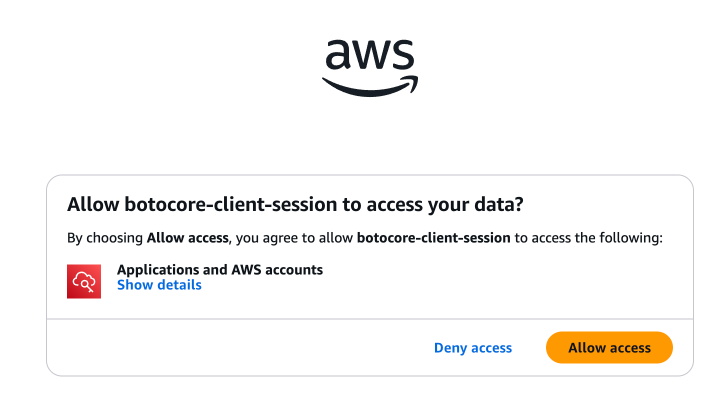
Then log in:
aws sso login --profile <YOUR_SSO_PROFILE>
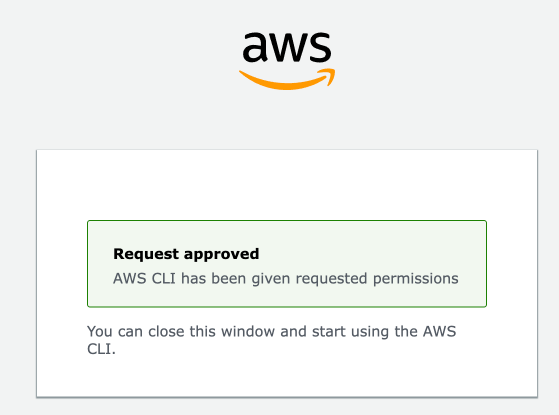
Step 2 — Get your caller ARN
Identify the ARN of the role you are currently using. This is needed to create a trust relationship:
aws sts get-caller-identity --profile <YOUR_SSO_PROFILE> --query Arn --output text
# <YOUR_CALLER_ARN>
Step 3 — Create the trust policy
Define a JSON file that allows your ARN to assume the initialization role:
cat > trust-policy.json << EOF
{
  "Version": "2012-10-17",
  "Statement": [
    {
      "Effect": "Allow",
      "Principal": {
        "AWS": "<YOUR_CALLER_ARN>"
      },
      "Action": "sts:AssumeRole"
    }
  ]
}
EOF
Step 4 — Create the IAM role
Create the role and attach the AdministratorAccess policy:
aws iam create-role \
  --role-name fractal-cloud-initializer \
  --assume-role-policy-document file://trust-policy.json \
  --profile <YOUR_SSO_PROFILE>

aws iam attach-role-policy \
  --role-name fractal-cloud-initializer \
  --policy-arn arn:aws:iam::aws:policy/AdministratorAccess \
  --profile <YOUR_SSO_PROFILE>
Step 5 — Assume the role
Trade your initial credentials for temporary credentials belonging to the fractal-cloud-initializer role:
aws sts assume-role \
  --role-arn arn:aws:iam::<YOUR_ACCOUNT_ID>:role/fractal-cloud-initializer \
  --role-session-name <YOUR_SSO_SESSION_NAME> \
  --profile <YOUR_SSO_PROFILE>
This returns AccessKeyId, SecretAccessKey, and SessionToken — use these to initialize the environment.
Step 6 — Run the initialization
Follow the environment initialization sample to initialize the environment programmatically.