Azure Environment Initialization
This guide covers everything you need to initialize a Fractal Cloud environment on Microsoft Azure.
Prerequisites
We recommend that an administrator performs environment initialization, as the Azure principal will need privileged access.
An administrator may assign the Contributor and Role Based Access Control Administrator roles to allow a group of principals to perform environment initialization independently. See Managing service principal roles for details.
Initialize via Web UI
Ensure you have assigned the roles Contributor and Role Based Access Control Administrator on the subscription you want to initialize.
Troubleshooting: KeyVault registration
If you receive this error regarding KeyVault:
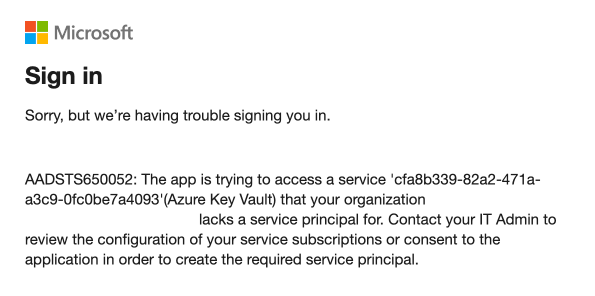
You need to register the Microsoft.KeyVault resource provider. Choose one of these methods:
Azure Portal:
- Go to the Azure Portal, navigate to Subscriptions and select your subscription.
- In the left-hand menu under Settings, select Resource providers.
- In the "Filter by name" box, type
Microsoft.KeyVault. - Click the "..." button on the
Microsoft.KeyVaultrow and select Register.
Azure CLI:
az provider register -n "Microsoft.KeyVault"
The registration status will take a few seconds to update.
Once configured, follow the general Web UI steps to complete the initialization.
Initialize via SDK
Step 1 — Create a Service Principal
Create a Service Principal and assign the required roles on each subscription where the Cloud Agent needs access:
# Create the service principal
az ad sp create-for-rbac --name "Fractal Cloud Initializer"

# Grant required roles on the target subscription
az role assignment create \
  --assignee <SERVICE_PRINCIPAL_ID> \
  --role "Contributor" \
  --scope /subscriptions/<SUBSCRIPTION_ID>

az role assignment create \
  --assignee <SERVICE_PRINCIPAL_ID> \
  --role "Role Based Access Control Administrator" \
  --scope /subscriptions/<SUBSCRIPTION_ID>
Step 2 — Verify role assignments
az ad app permission list --id <SERVICE_PRINCIPAL_ID>
You should see both Contributor and Role Based Access Control Administrator scoped to your subscription.
Step 3 — Run the initialization
Follow the environment initialization sample to initialize the environment programmatically.
Do not manually modify any resources within the rg-fractal Resource Group.
Optional: MS Graph permissions for App Role assignments
You only need this section if your components use RoleType.APP_ROLE_ASSIGNMENT or any CustomWorkloadRole that requires assigning MS Graph App Roles.
If your components use only Azure built-in roles or standard Azure RBAC roles, skip this section entirely.
Some components — such as AzureWebApp — allow you to add roles using the SDK:
withRole(CustomWorkloadRole role)
withRoles(List<CustomWorkloadRole> roles)
When using RoleType.APP_ROLE_ASSIGNMENT, Azure Active Directory App Role assignment capabilities are required. These permissions are not assigned automatically during initialization — you must configure them manually.
Required permissions
Grant the following Microsoft Graph Application permissions to the Cloud Agent's managed identity (id-fractal-cloud-agent):
| Permission Name | Permission ID | Purpose |
|---|---|---|
AppRoleAssignment.ReadWrite.All | 9a5d68dd-52b0-4cc2-bd40-abcf44ac3a30 | Assign and remove App Roles |
Directory.ReadWrite.All | 06b708a9-e830-4db3-a914-8e69da51d44f | Modify directory objects for role assignments |
Add the permissions
Replace <MANAGED_IDENTITY_OBJECT_ID> with the object ID of the id-fractal-cloud-agent identity:
az ad app permission add \
  --id <MANAGED_IDENTITY_OBJECT_ID> \
  --api 00000003-0000-0000-c000-000000000000 \
  --api-permissions 9a5d68dd-52b0-4cc2-bd40-abcf44ac3a30=Role

az ad app permission add \
  --id <MANAGED_IDENTITY_OBJECT_ID> \
  --api 00000003-0000-0000-c000-000000000000 \
  --api-permissions 06b708a9-e830-4db3-a914-8e69da51d44f=Role
Grant admin consent
A Global Administrator or Privileged Role Administrator must approve these permissions. Follow Microsoft's guidance on granting admin consent.
Verify
az ad app permission list --id <MANAGED_IDENTITY_OBJECT_ID>
You should see AppRoleAssignment.ReadWrite.All and Directory.ReadWrite.All listed.
| Use Case | Requires manual MS Graph setup? |
|---|---|
| Standard Azure environment initialization | No |
| Components using Azure built-in RBAC roles | No |
| Components using custom Azure RBAC roles | No |
Components using RoleType.APP_ROLE_ASSIGNMENT | Yes |