Your First Fractal Cloud Deployment with GUI
Target Audience: Platform Engineers, Architects, and Ops Leads Goal: Design the "Pilot Project" architecture (container platform + workload + storage) in the Fractal Cloud Web Console, mirroring the code-based workflow visually.
Just want something running? The UI quick start is the short path — six steps, one component. This tutorial is the full picture.
Part 1: Core Concepts & Architecture
Fractal Cloud takes a component-based approach to infrastructure. The SDK expresses it as code; the Web Console provides a Design Canvas to compose the same components visually.
The object model
- Component — an abstract capability contract (container platform, object storage, relational database). Says what is needed, never how. Never provisioned directly.
- Offer — a concrete, vendor-specific implementation of a Component (GKE, S3, Cloud SQL for PostgreSQL). The only level that maps to real infrastructure.
- Fractal (blueprint) — a reusable, governed architecture pattern composed of Components and the links between them. References Components only, so it never names a vendor.
- Live System — the running instance of a Fractal: one Offer selected per Component, deployed into an Environment.
This is why the palette does not name a vendor: a Fractal is vendor-agnostic by construction. The vendor is chosen at instantiation time, so the same blueprint deploys to AWS, Azure, or GCP unchanged.
Operational boundaries
- Bounded Context — a logical container for ownership and governance. It isolates your Fractals and Live Systems so policy is enforced consistently within one business domain. The control-plane API still calls this a Resource Group, and you will see that label in some dashboard fields.
- Environment — a segment of your IT landscape ("GCP Dev", "AWS Prod") that maps to one specific cloud target: a GCP project, an AWS account, an Azure subscription. Establishes the physical deployment boundary.
- Cloud Agent — the reconciler. It runs inside your cloud account, calculates the diff between the blueprint and actual cloud state, and closes it. The control plane holds no standing access to your cloud, and there is no state file: your cloud is the source of truth.
Part 2: The Pilot Project Scenario
We build a standard multi-tier architecture for a "Pilot Project" on the Design Canvas. Prefer a code-first approach? The SDK tutorial builds the same shape in TypeScript.
The stack:
- Compute — a Container Platform (a managed Kubernetes cluster).
- Workload — a web application running on that platform.
- Storage — a File & Blob Storage component.
Part 3: Implementation Workflow
Phase A: The Ops Engineer — setting the foundation
Goal: define where infrastructure lives, and set the security boundary.
Ops maps a Fractal Environment to a specific cloud provider account.
Step 1: Connect a cloud provider and define the environment
- Go to Environments and create or select an environment.
- Open the environment, then find the Cloud Agents section.
- Select Initialize Cloud Agent.
- Choose your cloud provider and follow the authorization flow.
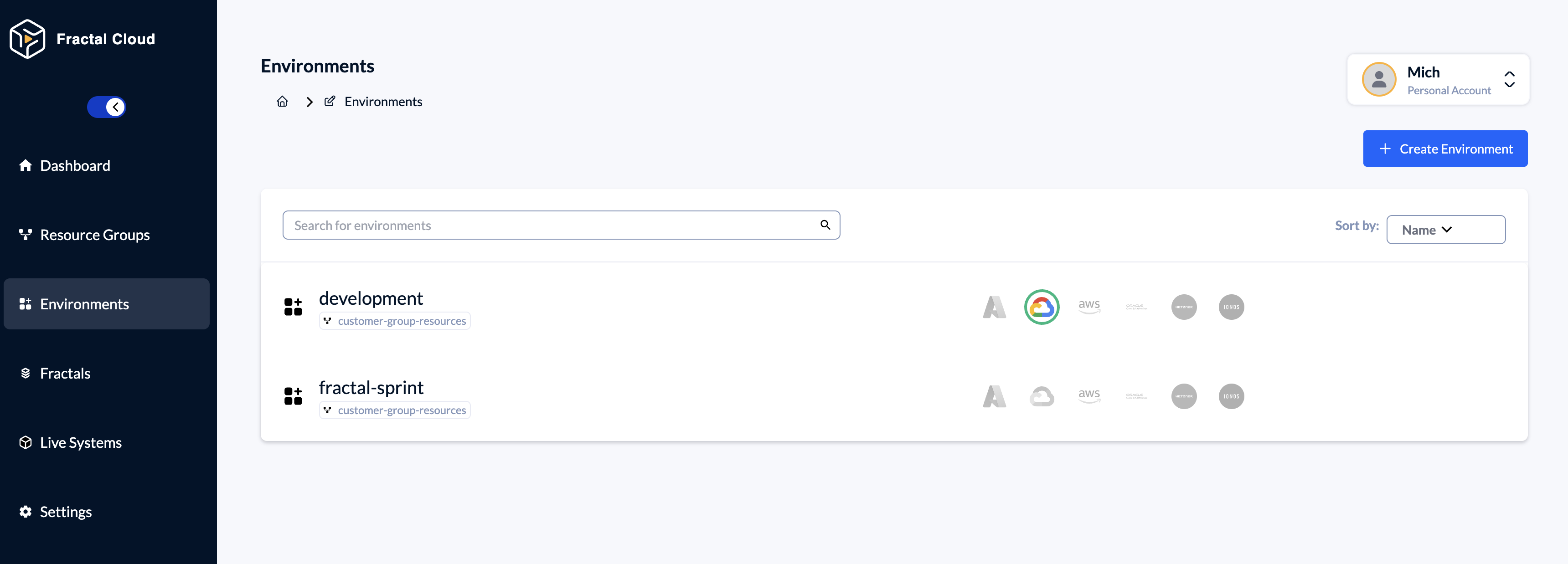
Provider prerequisites and common failures are covered per provider in Environment initialization.
Leave agent resources alone. Do not manually modify or delete Cloud Agent resources in your cloud account. To disconnect, remove the environment from Fractal Cloud — that cleans up the agent resources for you.
Phase B: The Platform Engineer — building standards
Goal: create golden paths as standardized, governed components.
Platform uses the Design Canvas to compose the blueprint. This is the visual equivalent of authoring the Fractal in code.
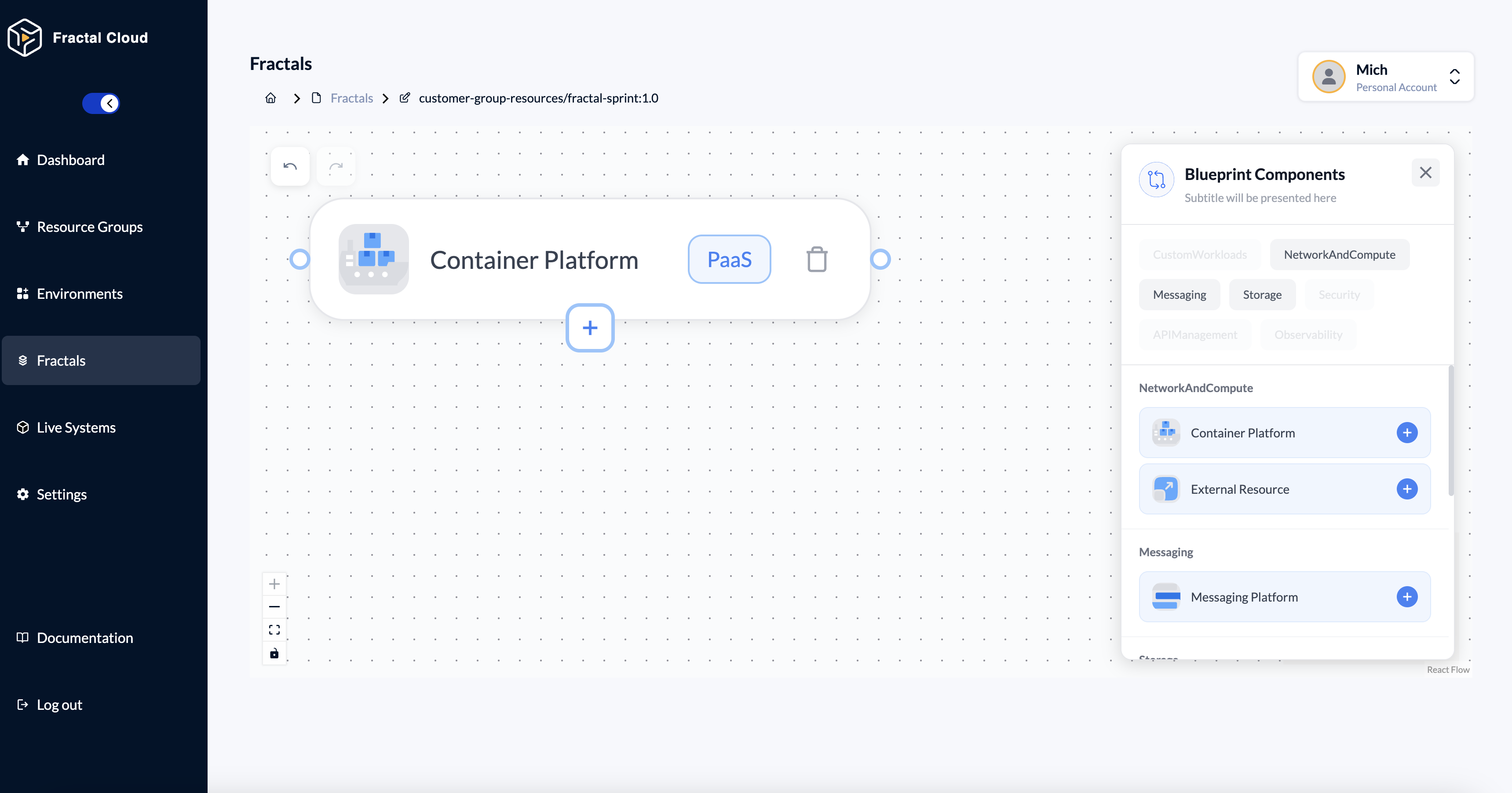
Step 2: Create the Fractal and define compute
- Go to Fractals and select Create Fractal.
- Open the Design Canvas.
- Drag the Container Platform element from the palette onto the canvas.
Step 3: Add a workload to the container platform
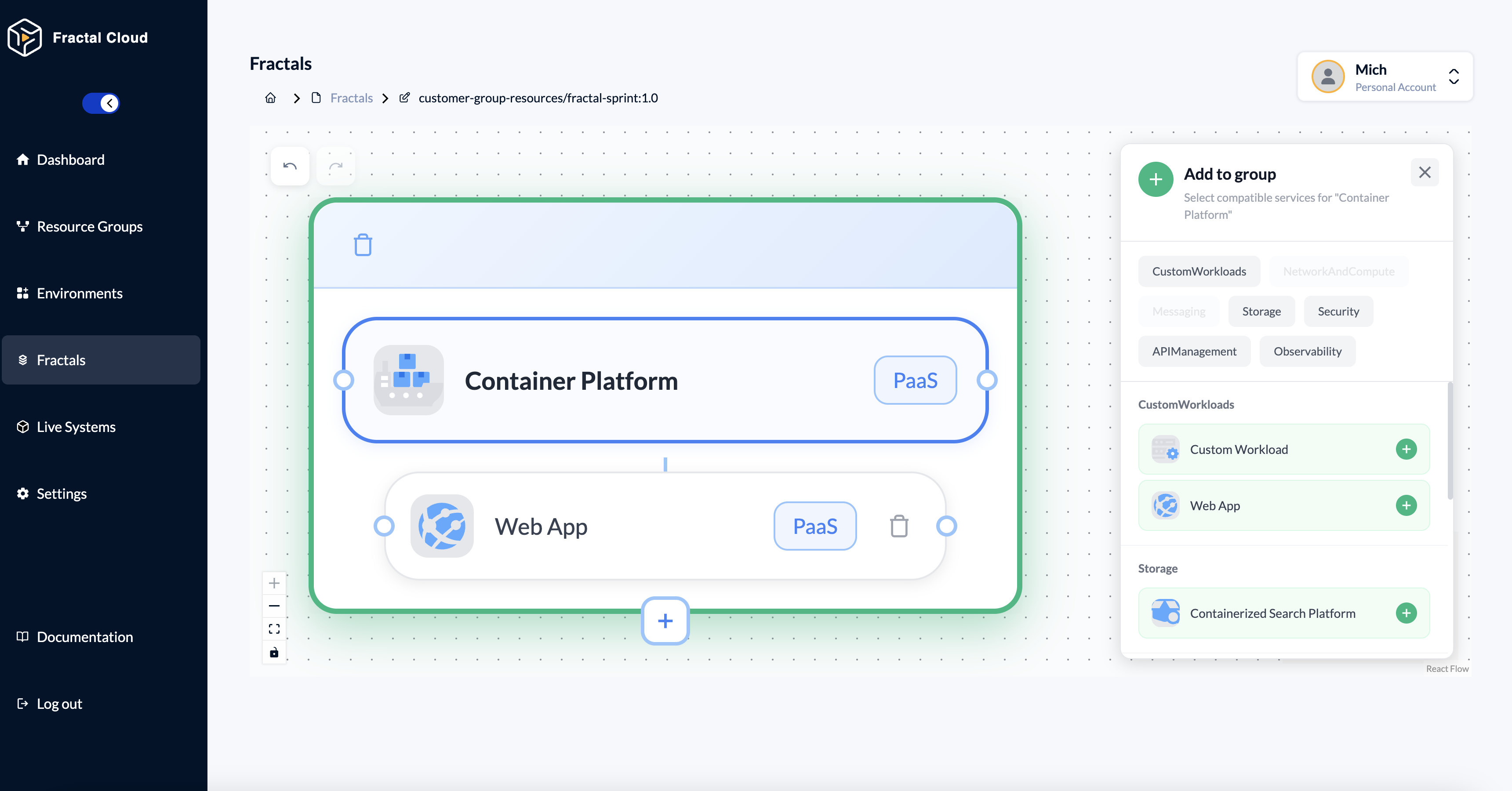
- Hover over the Container Platform on the canvas.
- Click the + icon at the bottom of the group box.
- In the side panel, go to CustomWorkloads.
- Select Web App from the list.
The Web App is now nested inside the Container Platform group — the nesting is the dependency: the workload cannot exist without somewhere to run.
Step 4: Define storage
- On the Design Canvas, open the Storage category in the palette.
- Drag the File & Blob Storage element onto the canvas.
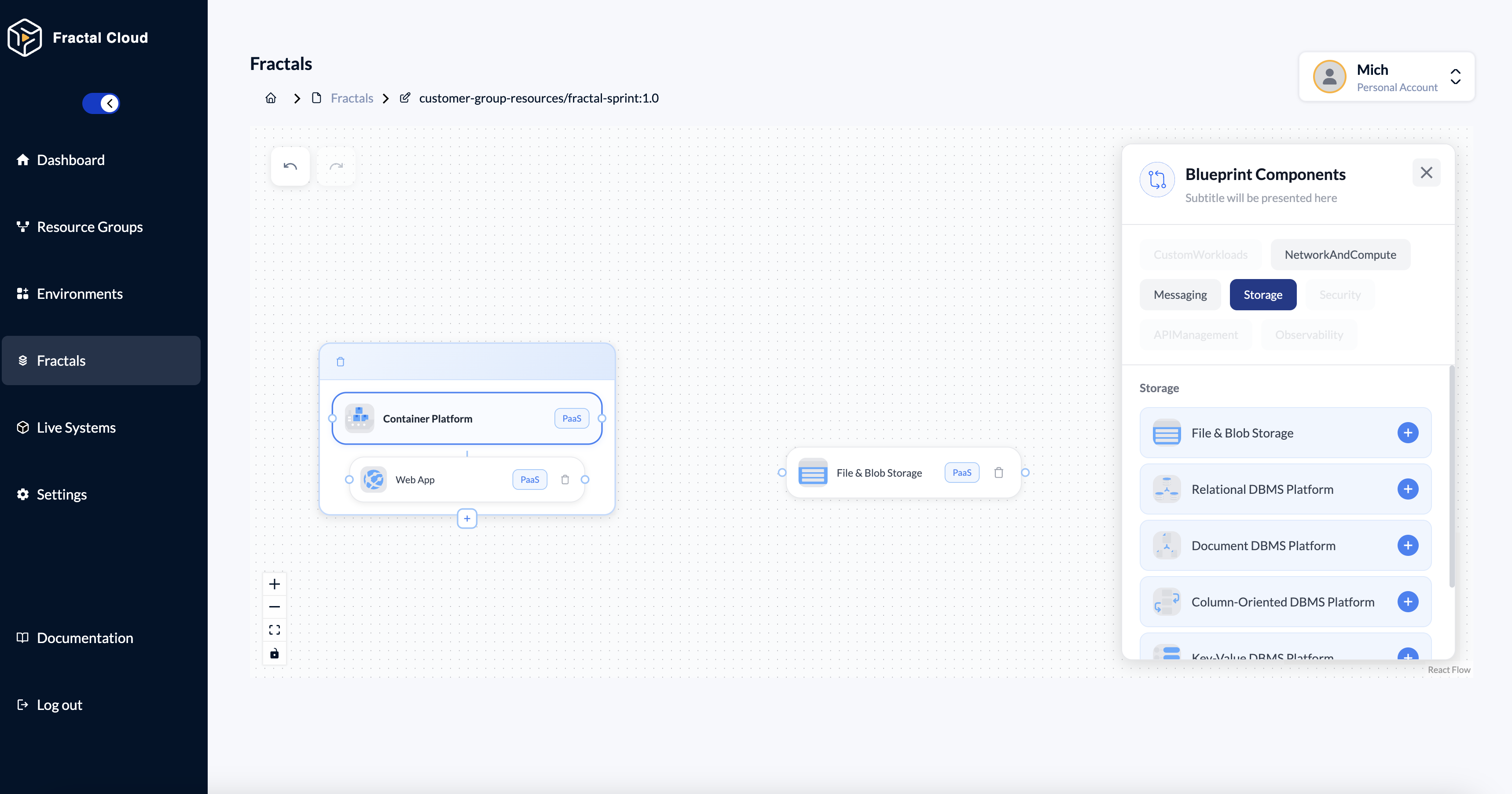
The blueprint is now complete: a governed pattern that can be instantiated many times, on different clouds, without modification.
Phase C: The Developer — consuming infrastructure
Goal: deploy the application without waiting for tickets.
The developer finds this blueprint in the catalogue and instantiates it. They interact with a simplified Wizard, not the canvas.
Why a separate surface? The Wizard lets developers deploy infrastructure without being able to edit the blueprint's governance rules. It is the visual equivalent of the SDK's typed Fractal interface: the customization a consumer may perform is exactly what the platform team exposed, and nothing more.
Step 5: Select and save the Fractal
- Find your Fractal in the Fractals list and open it.
- Select the Play button on the right.
- Select Save Fractal.
- Select Instantiate Live System.
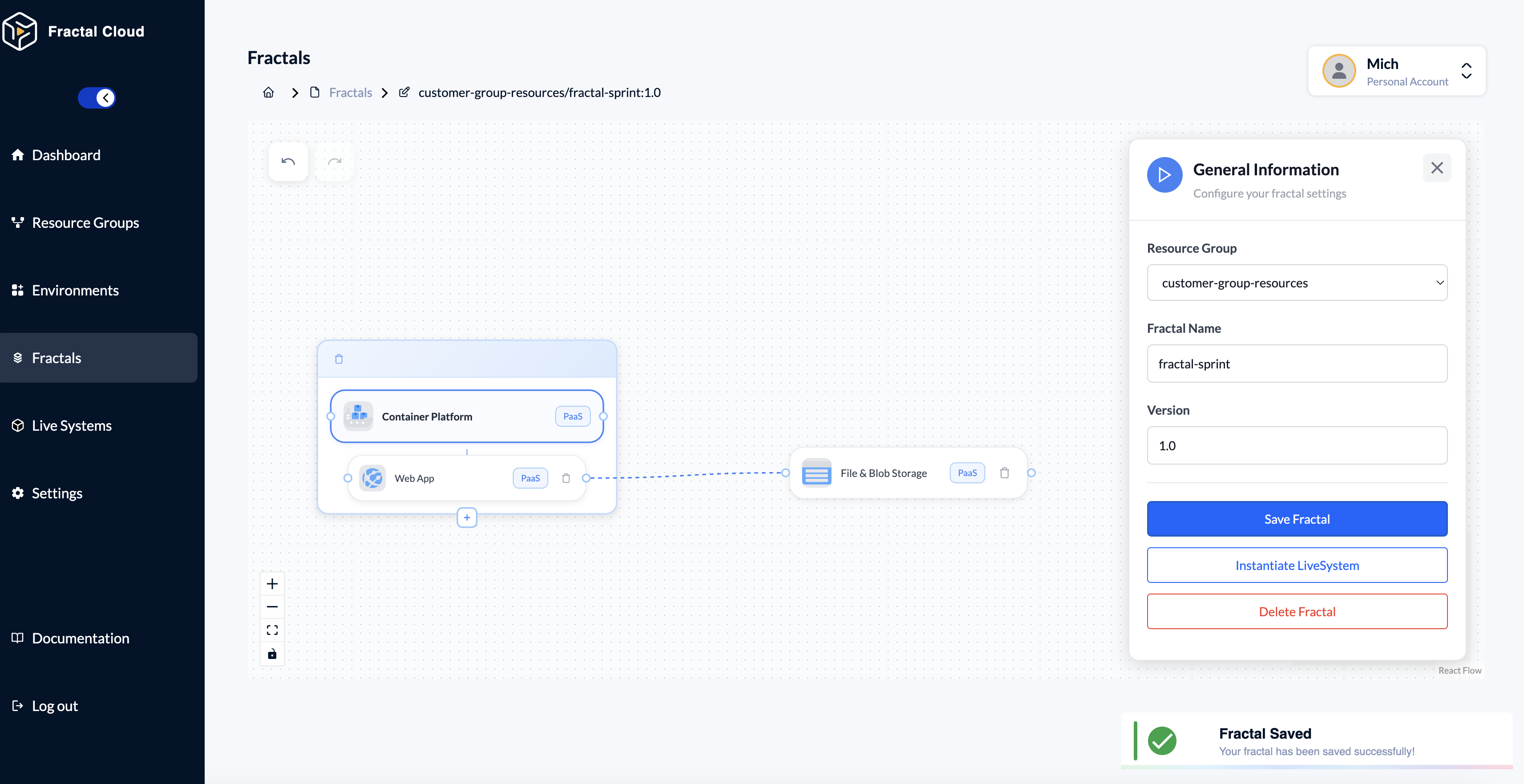
Step 6: Configure and deploy
- Select the Bounded Context.
- Select the Environment created in Phase A. It already has the cloud provider integration configured.
- Name your Live System.
- Select Instantiate LiveSystem.
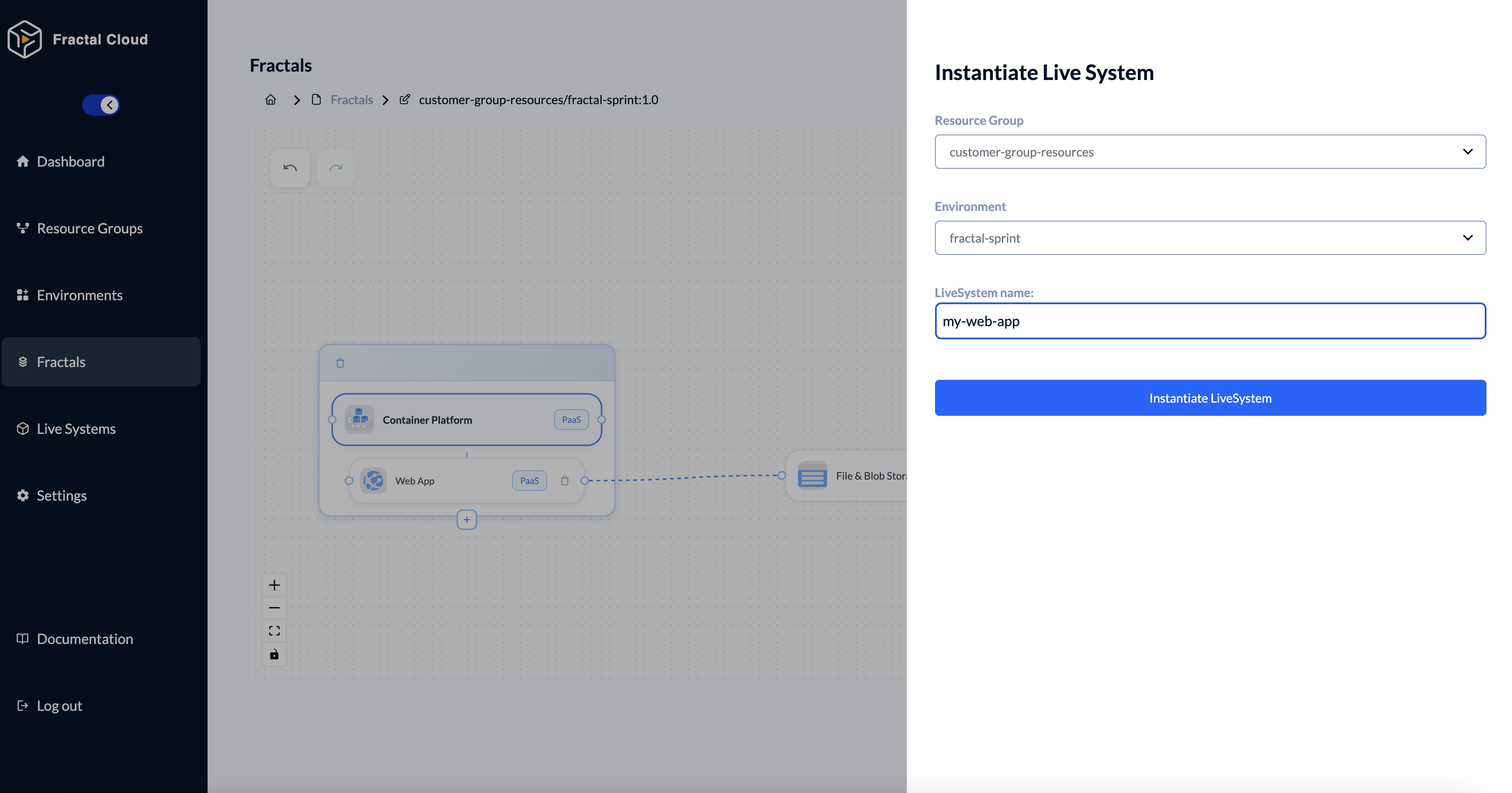
This starts the reconciliation loop. The Cloud Agent compares the blueprint against your cloud account and provisions what is missing. Each component reports its own status and moves to Active once the agent has provisioned it and confirmed it matches.
Good to know The Fractal blueprint is created once by the platform team. It can be instantiated many times, by different developers, across multiple environments — without modification.
Summary: Visual vs Code
| GUI (Console) | SDK (Code) | |
|---|---|---|
| Ops role | Environments section | ManagementEnvironment / OperationalEnvironment |
| Platform role | Design Canvas | createFractal({blueprint, operations}) |
| Developer role | Instantiation Wizard | .specialize().toLiveSystem({select}) |
| Guardrails | Locked on the canvas | .withXxx() on a Component |
| Vendor choice | Made in the Wizard | The select map |
| CI/CD integration | Manual via the console | Fully automatable in a pipeline |
The GUI is best for designing and exploring. The SDK is best for automation and GitOps. Both produce the same blueprints and Live Systems, and both are visible from either surface.
What next
- The same stack in code — the TypeScript equivalent, adding a network tier and a database wired to the workload.
- Component Reference — every Offer in the catalogue, per vendor, with all its parameters.
- How-Tos — task-sized recipes: create a Kubernetes workload, import existing resources, export to Terraform.